
Keeping your OceanBridge Multizone Lighting Controller up to date ensures you always get the best from your OceanLED underwater lights and your controller.
The firmware updates we release could include performance improvements, new features, compatibility updates, and bug fixes.
Think about firmware updates is the same way you think about updating your iPhone. Your phone receives periodic updates to improve functionality and security, your OceanBridge controller is the same.
Fortunately, the process is quick and straightforward. It usually takes just a few minutes.
You can find everything you need for your OceanBridge on the official product page here:👉
Your Step-by-Step Guide:
Step 1: Download the Latest Firmware and Insert the USB
If you are the proud owner of an OceanBridge unit, you should have registered it with us. If you haven’t, you can do it here:👉
If you have registered your unit, you will receive an email with the latest firmware updates whenever they are available.
So, in the email you should have received, download the latest firmware file and save it to a USB memory stick (4GB or larger is recommended). We also recommend it’s a good quality USB. Some cheap USB’s lack the power for a speedy update.
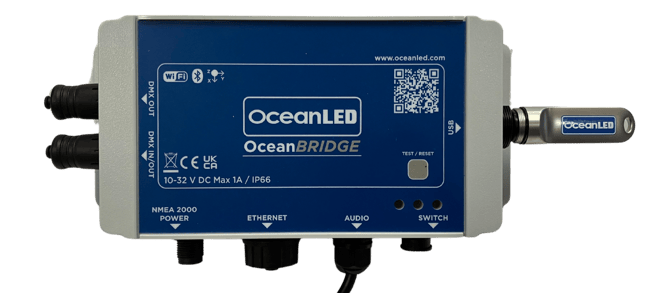
Once downloaded, plug the USB stick into the USB port on the side of your OceanBridge unit.
This is where you have hopefully read the installation instructions before installing the unit and it’s nice and easy to get to.
Step 2: Navigate to Firmware Update
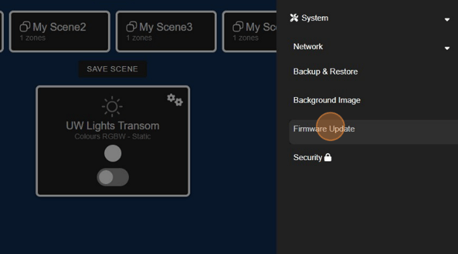
From the main menu on your OceanBridge interface, navigate to:
Menu → System → Firmware Update
This will open the firmware update section of the controller.
Step 3: Select “Firmware Update”
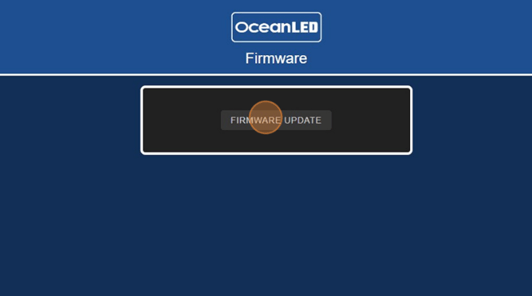
Select the “Firmware Update” button to begin the update process.
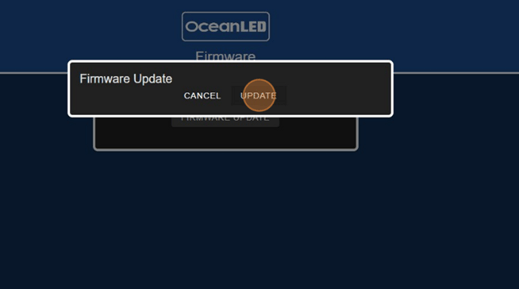
The system will detect the firmware file on the USB stick and prompt you to proceed with the update.
Step 4: Wait for the Update to Complete
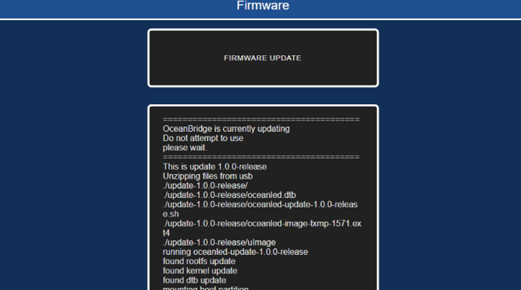
Once the update begins, the screen will display a progress bar showing the update status.
The update typically takes 6–7 minutes to complete. During this time, do not remove the USB stick or power off the device.
Step 5: Update Complete
When the update finishes, the progress screen will automatically close and the controller will return to the normal interface.
Your OceanBridge unit is now successfully updated and ready to use.
Confirming the Firmware Version (Optional)
If you would like to confirm that the update installed correctly, navigate to:
Menu → Info
Here you can view the currently installed firmware version on your OceanBridge controller.
Download the Firmware Update Guide
For a visual walkthrough of the update process, including screenshots of each step, you can download the official Firmware Update Guide.
👉 Download the Firmware Update Guide
Need Additional Help?
If you have any questions about updating your controller or need assistance, our team is happy to help.
North or South America
Tel: +1 (954) 523 2250
Email: sales@oceanledusa.com
Europe, UK, Middle East, Asia-Pacific, and Rest of World
Tel: +44 1455 637505
Email: sales@oceanled.com
You can also learn more about the system on the official product page:
👉 https://www.oceanled.com/product/oceanbridge-multizone-lighting-controller